iCloud Login

As a common practice, most users store more data in iCloud than they realize, including photos, contact details, notes, and even Health app information, which are saved in the cloud by default. However, accessing and managing these stored data in iCloud can be confusing. Fortunately, it is a straightforward process.
How to Access iCloud via the Website:
To access iCloud, you need an internet-connected computer or phone. Follow these steps:
- Go to icloud.com and enter the email linked to your Apple ID account.
- Enter your password after clicking the arrow icon.
- If two-factor authentication is enabled on your Apple ID, a code will be sent to your devices. Enter this code on the iCloud website to log in.
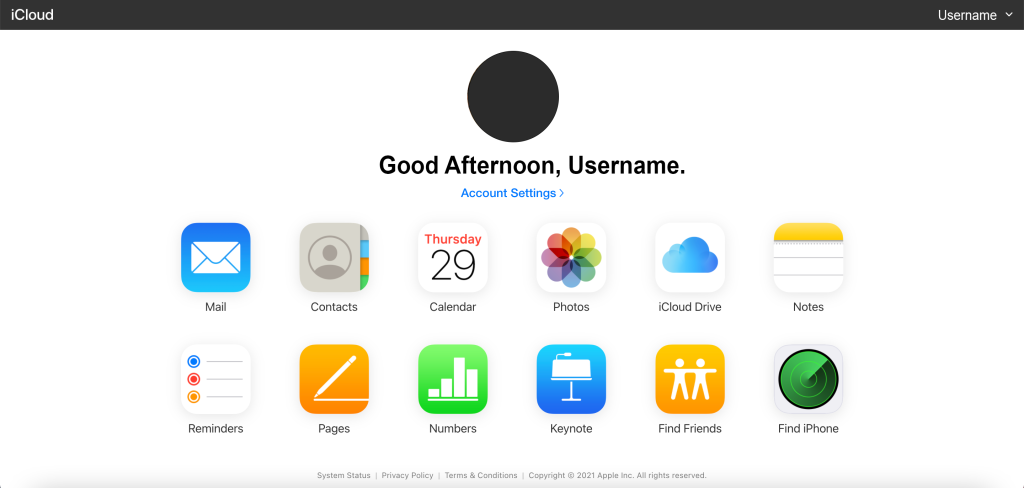
- A list of icons and options will be displayed, with more options on the desktop version. Click on any icon to access your stored data, where you can manage it by deleting, moving, or downloading.
How to Access iCloud via iPhone, iPad, or Mac
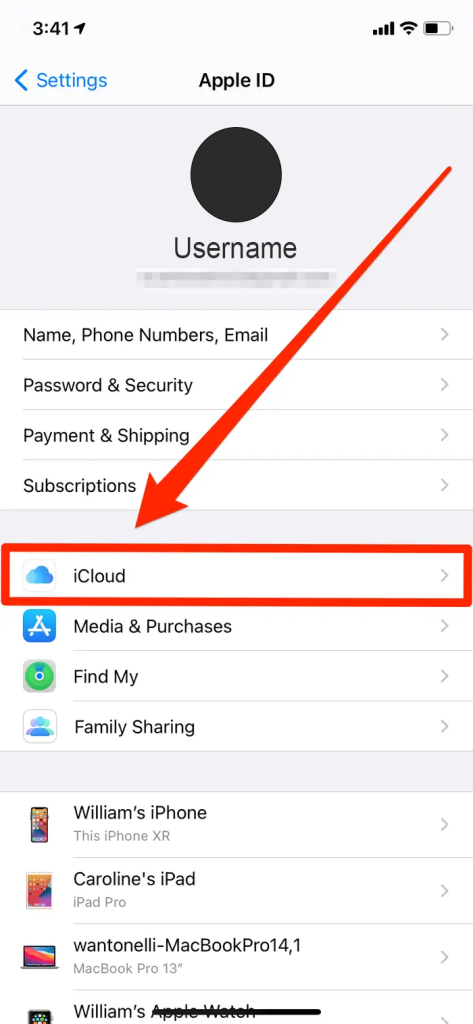
Another way to access your Apple ID and iCloud is through the Apple ID menu, which can be found at the top of the Settings app on all devices.
For iPhone or iPad:
- Open Settings
- Tap your name at the top of all options
For Mac:
- Click the Apple logo in the top-left corner
- Select System Preferences
- Go to Apple ID
Once you reach this page, tap or click the iCloud option.
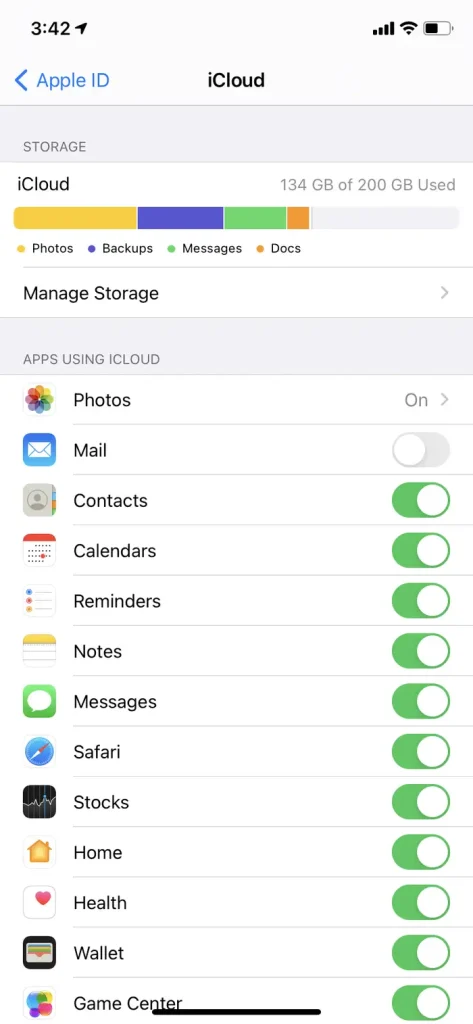
You will see the amount of storage space you have in iCloud and the type of data it contains. By selecting the "Manage" option, you can view the amount of data each app uses and upgrade your iCloud storage plan.
In the "Apps Using iCloud" section, you can choose which apps can save data to iCloud and which ones must only store data on your device. Turning off an option will immediately delete its data from iCloud.