 Maintaining the security of your accounts, including Twitter, is crucial. If you suspect that your Twitter password may have been compromised, if you desire to create a stronger password, or if you have forgotten your password, changing it on the Twitter website or mobile app is a straightforward process. Here’s the step-by-step guide:
Change your Twitter Password in a Web Browser
1. Access the Twitter website in your web browser. 2. On the left of the homepage, click More (next to the icon with three horizontal dots).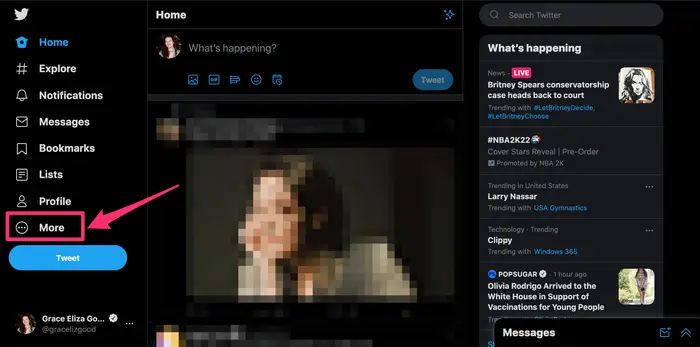 3. From the pop-up menu, select Settings and privacy.
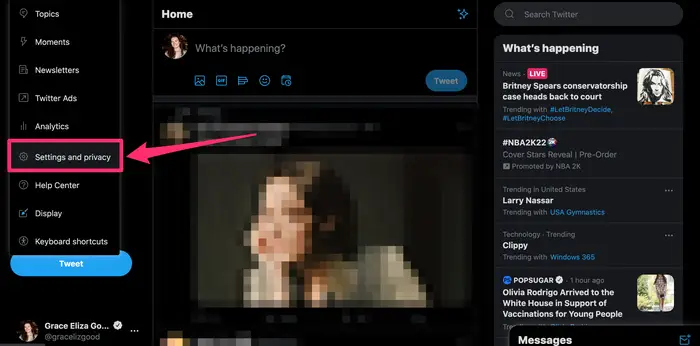 4. Within Your Account, click Change your password.
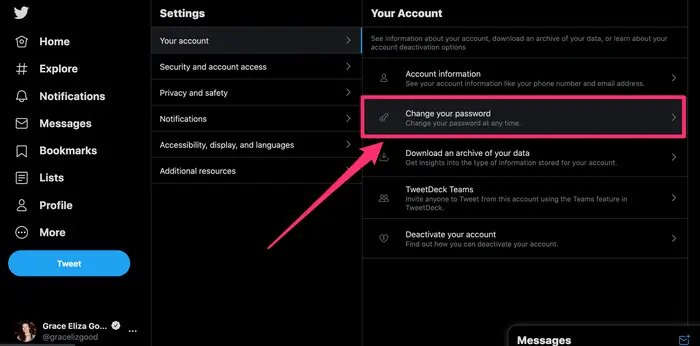 5. Enter your current password as well as type a new one in both New Password and Confirm Password boxes.
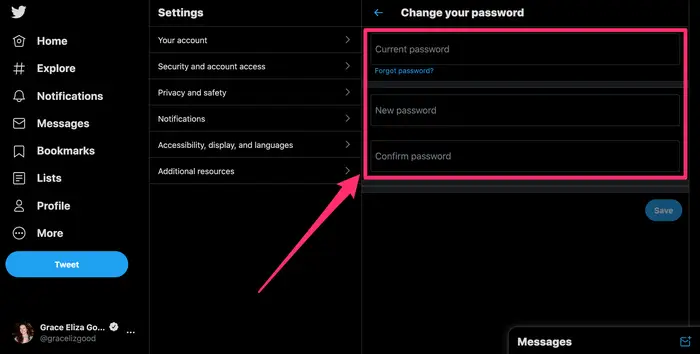 6. Press Save to confirm change.
Change your Twitter Password in Mobile App
1. Open Twitter app on your iPhone, iPad, or Android device. 2. Tap the icon with three horizontal lines at the top-left corner of the screen. 3. Select Settings and privacy from the menu that appears.
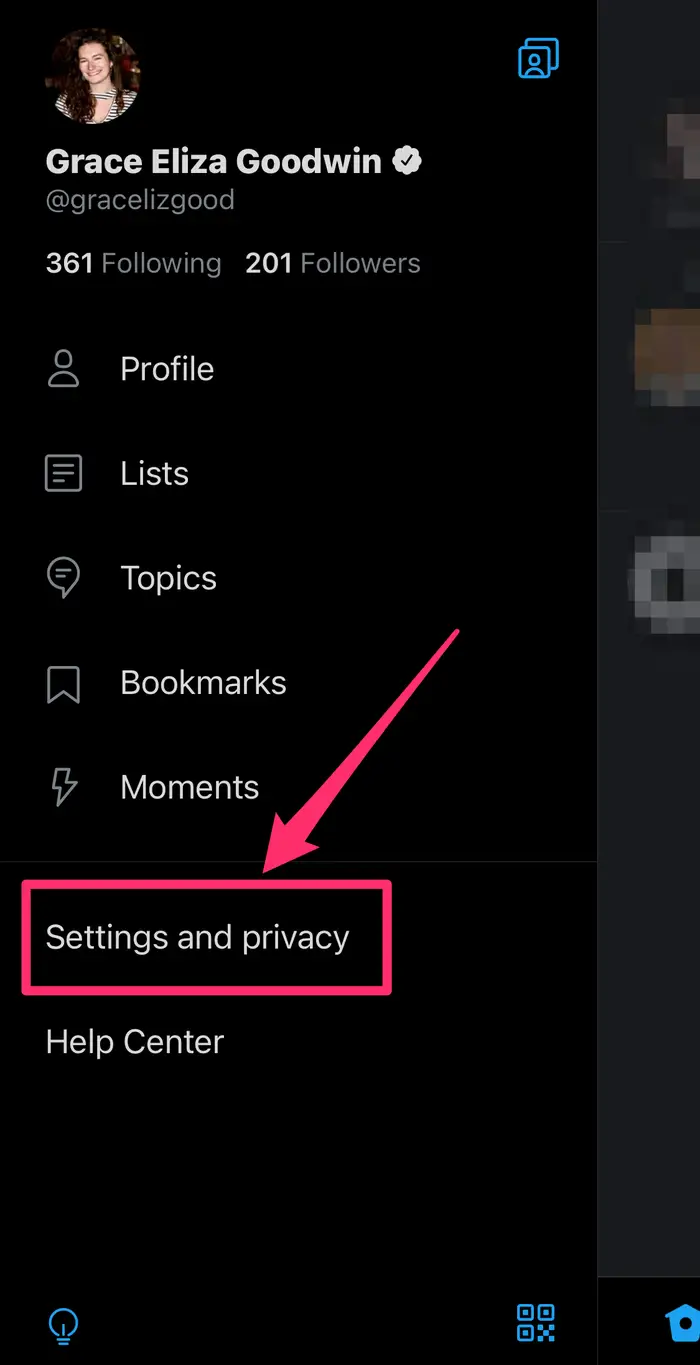 4. On the Settings and privacy page, tap Account.
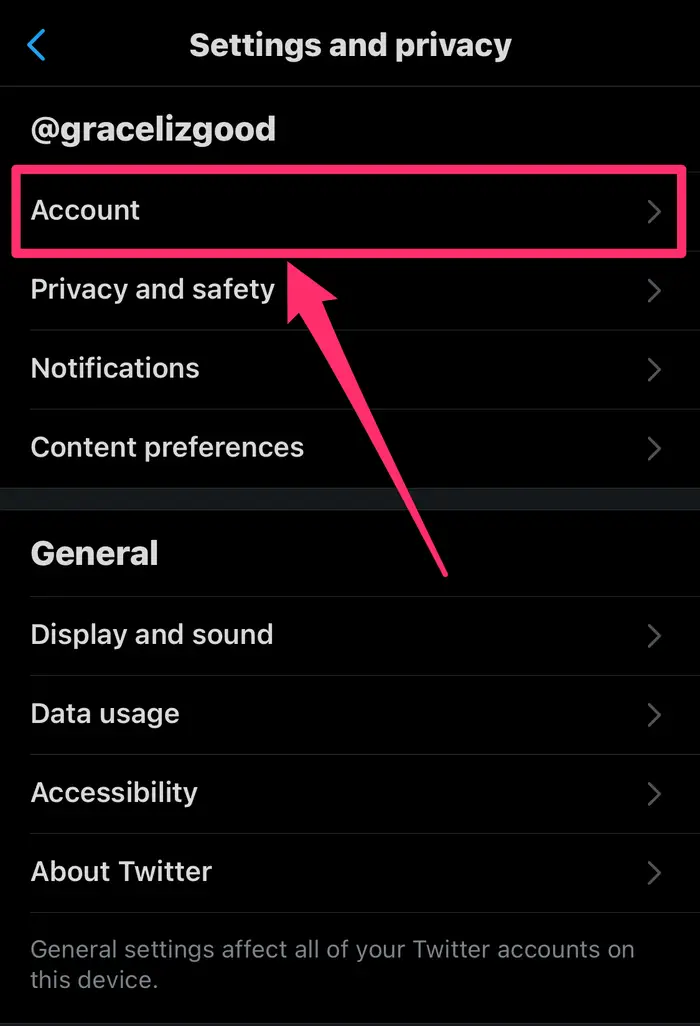 5. Go to Password on the Account page to start updating it.
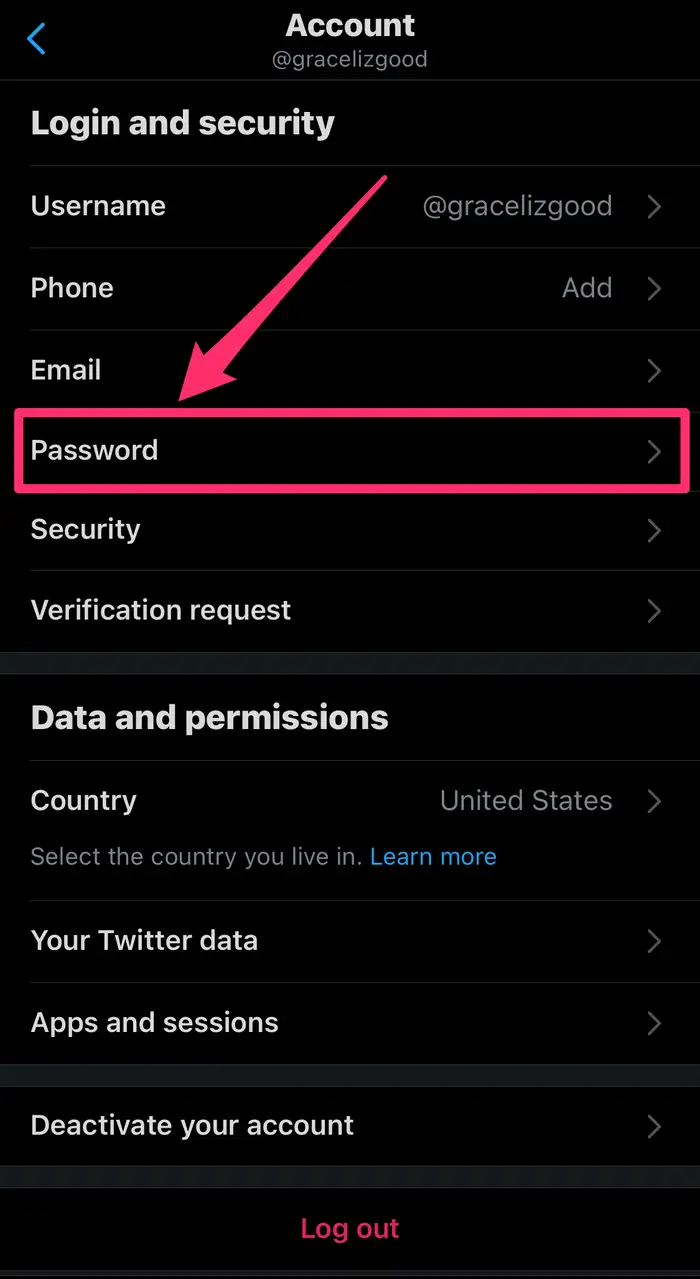 6. Enter your current password and then type a new one in both New Password and Confirm Password fields.
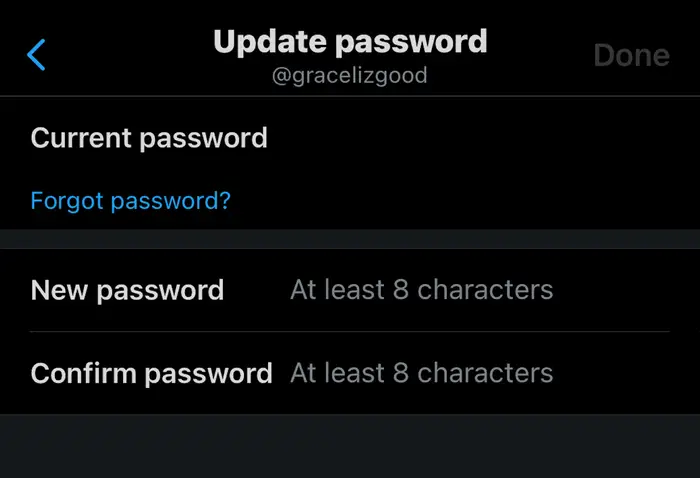 7. Tap Done in the top-right corner to save your changes.
How to Reset Your Forgotten Twitter Password
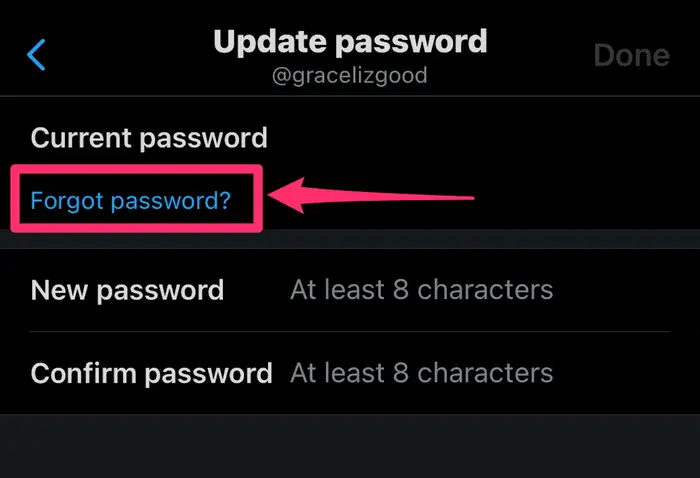
If you’re trying to update your Twitter password, but you don’t remember what it is, don’t worry – there’s still a way. Whether you’re on the Twitter website or app, when you’re asked for the current password and can’t supply it, look for a link that says “Forgot password?”
Click that link and follow the instructions to reset your password. You’ll need to enter either your phone number or email address associated with your account to get a verification code or reset link. Once you have that code, enter it in the appropriate place on the page or open the reset link. Then you can choose your new password and save it.
Now that you know how to change your Twitter password even if you’ve forgotten your existing one, make sure to stay safe online by creating a strong new password and updating regularly!
After updating your password, refer to the Beginner’s Guide to Twitter for additional useful tips.