
Zoom Login

Zoom is a cloud-based platform that offers a range of services for video and audio conferencing, webinars, and distance education. The software is available for free and can be accessed through a web browser, a desktop client, or a mobile app. This guide will provide you with the steps needed to sign into your Zoom account using any of these methods.
If you do not already have a Zoom account, you can easily create a free account by following the sign-up process. The process is simple and straightforward, and once you have created your account, you can start using all of the features and services that Zoom has to offer.
Log into Zoom Using a Web Browser
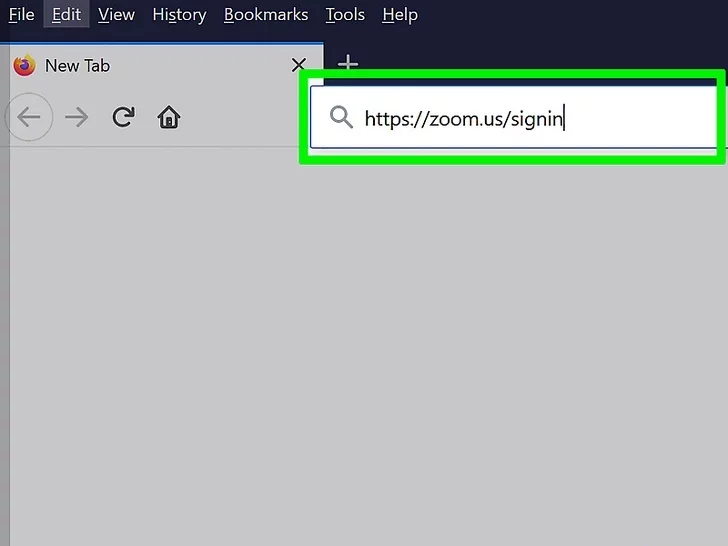
1. To log into your Zoom account using a web browser, go to https://zoom.us/signin. This option is suitable if you are using a computer that does not have the Zoom desktop client installed, or if you prefer not to install any software. You can use any web browser of your choice to access the login page.
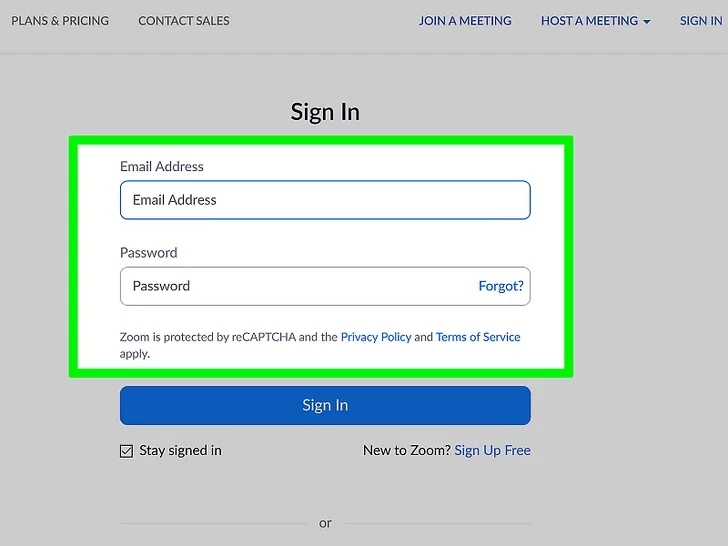
2. Enter your Zoom email and password, or signing in through SSO, Google, or Facebook. If you opt for SSO, Google, or Facebook, you may be prompted to verify your account and provide your date of birth.
It's worth noting that SSO stands for single sign-on, which is an option provided by some companies for their employees to access their Zoom account. This feature allows you to log in with a single set of credentials, eliminating the need to remember multiple usernames and passwords.
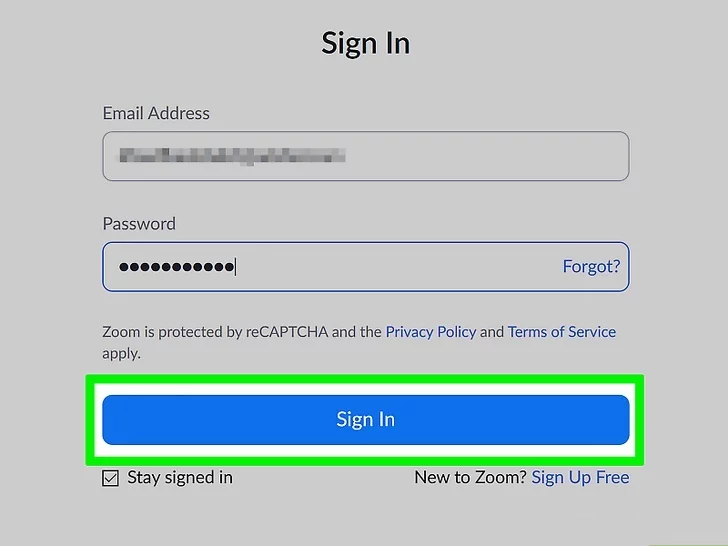
3. If you have logged in using your Zoom email and password, simply click on the "Sign In" button. Upon successful login, you will be redirected to your Zoom dashboard.
To log out of your account, you can simply click on your profile picture located in the upper right corner of the page. A drop-down menu will appear, and from there, you can select "Sign Out." This will log you out of your Zoom account, ensuring the security and privacy of your information.
Log into Zoom Using the Desktop Client
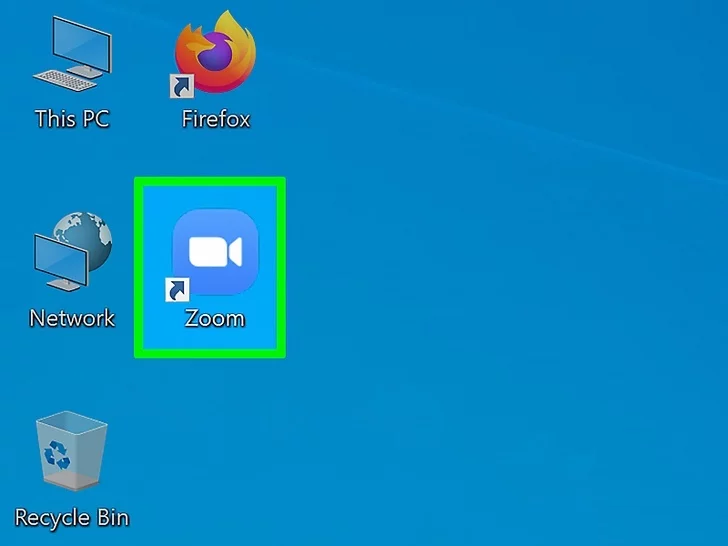
1. To log into your Zoom account using the desktop client, the first step is to open the Zoom application. You can easily find it in your Start menu (for Windows) or in the Applications folder (for Mac).
In case you don't have the Zoom client installed on your computer, you can go to https://zoom.us/support/download to download it. The download process will begin automatically, and once the file is downloaded, you can open it (usually as a notification in your browser). Follow the on-screen instructions to install the Zoom client.
If you are unable to download the Zoom desktop client (for example, if you are using a different computer), you can still log into your Zoom account using a web browser. This option provides a convenient alternative for those who cannot install the Zoom client.
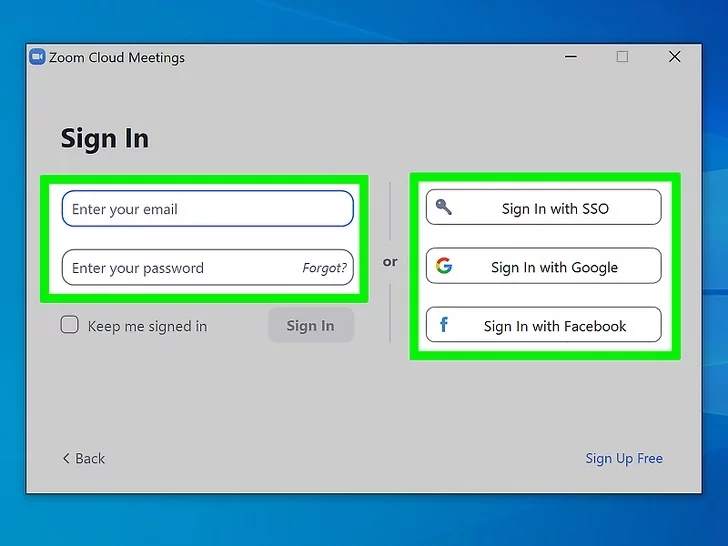
2. Enter your Zoom email and password, or click on the option to sign in with SSO, Google, or Facebook. If you opt for SSO, Google, or Facebook, you may need to verify your account and birthdate. Note: SSO refers to a Single Sign-On provided by your company for its Zoom account.
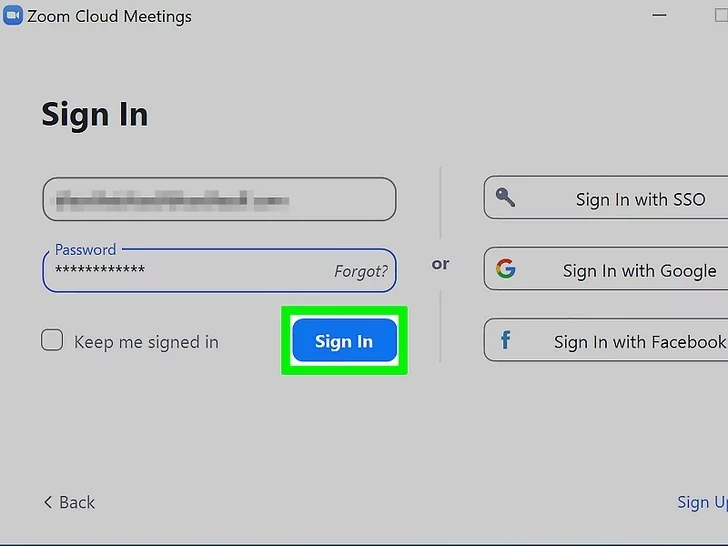
3. To log in to your account, click the "Sign In" button (if you used your email and password to log in). After successful login, you will be redirected to your dashboard. To log out, go to the upper right corner of the page, click your profile picture, and select "Sign Out" from the drop-down menu.
Log into Zoom Using the Mobile App
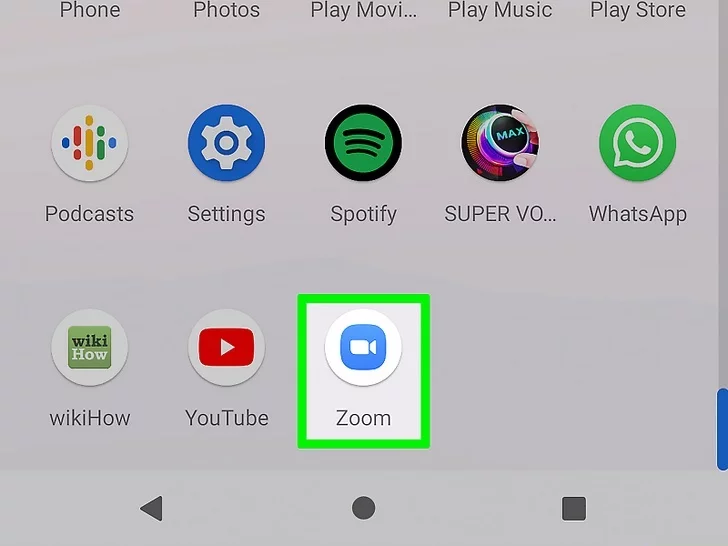
1. Find the Zoom app by looking for a white video camera icon on a blue background. It may be located on one of your home screens, in the app drawer, or through a search. Open Zoom.
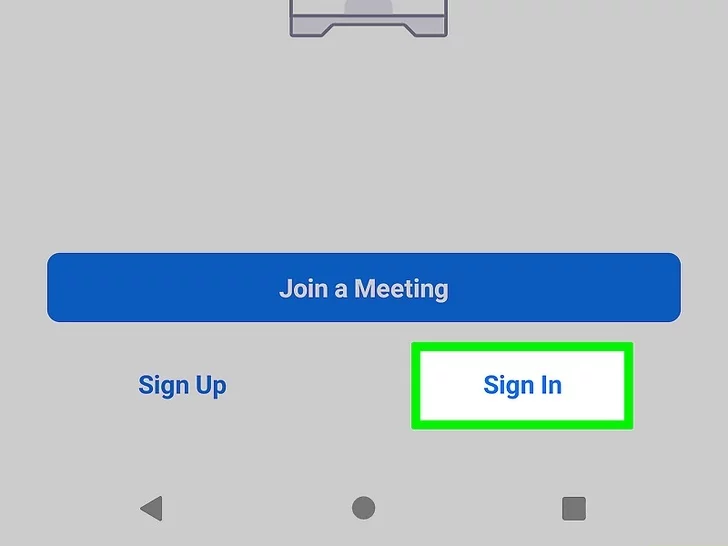
2. In the lower right corner of your screen, tap the "Sign In" button.
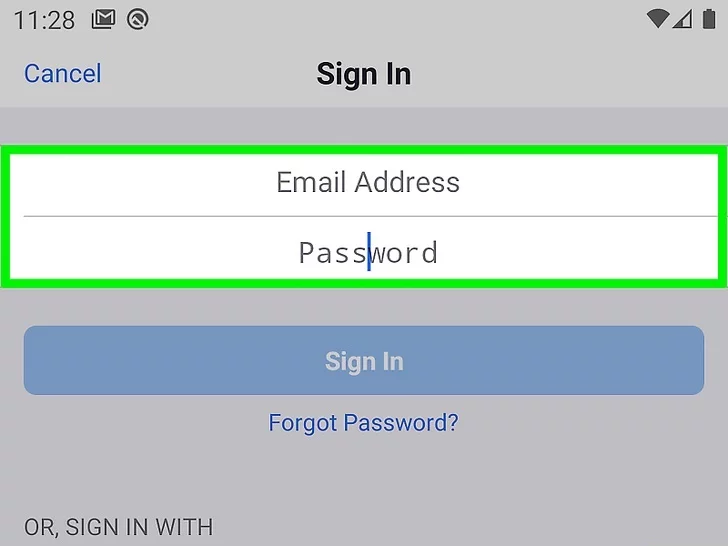
3. Input your Zoom login credentials or choose to sign in via SSO, Google, or Facebook. If you opt for SSO, Google, or Facebook, you may be asked to verify your account and birthdate.
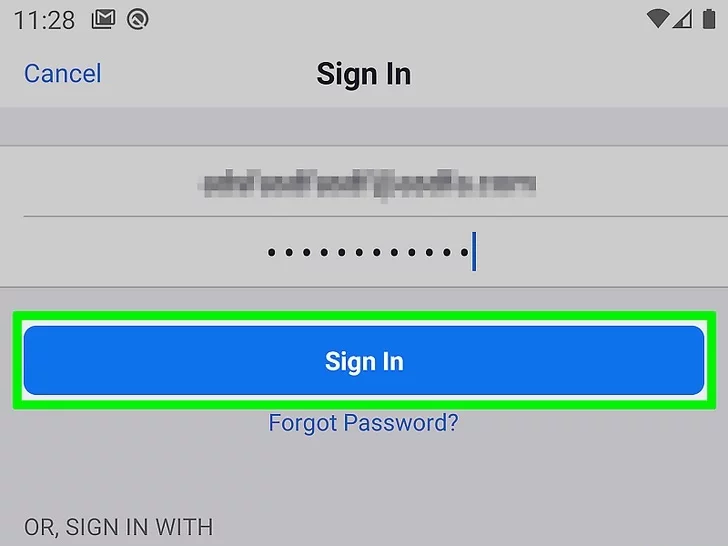
4. If you signed in using your email and password, tap "Sign In." You'll be directed to your dashboard. To log out, go to the bottom of the screen and tap "Settings" (represented by a gear icon), then select your account at the top of the menu and choose "Sign Out" at the bottom of the menu.
In case you encounter difficulties with logging in, you might need to change or reset your Zoom password.